How to Save TikTok Videos Without a Watermark on Android
On Android, TikTok's built-in "Save video" option still stamps the clip with a watermark and username. To get a clean copy at original quality, your browser plus ReelGrab is all you need — no extra app install.
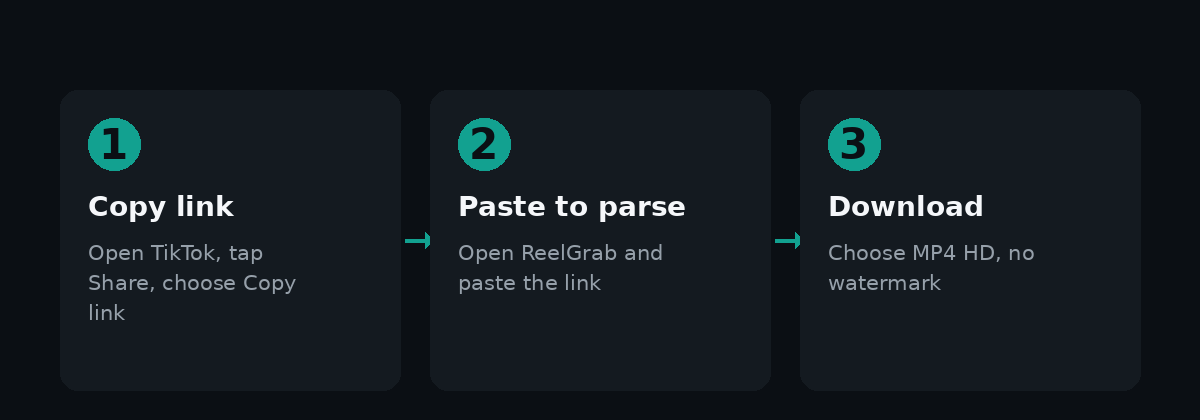
Step 1: Copy the video link
Open the TikTok app, find the video, tap the Share icon on the right side of the screen, and choose Copy link.
Step 2: Paste it into ReelGrab
Open Chrome (or any browser) on your phone, go to the ReelGrab homepage, paste the link into the box at the top, and tap Download. Within a few seconds you'll see the video's cover, title, and download options.
Step 3: Pick a quality and save
Tap MP4 HD · No watermark and the download will start. On most Android browsers, a notification will pop up once it's done — tap it to open the file or jump straight to where it's saved.
Where do downloaded files go?
By default, Android saves browser downloads to Internal storage → Download. Open your phone's "Files" app (sometimes called "My Files") and look in the Downloads category. Most gallery apps automatically pick up video files from the Download folder; if it doesn't show up automatically, you can move the file into your DCIM folder or wherever your gallery app scans.
FAQ
Nothing happens when I tap download — why? The direct video link sometimes briefly stops working. Going back and re-pasting the same link usually fixes it.
Will the downloaded file get auto-deleted? No — it stays on your phone's storage just like any other download, until you delete it yourself.
Ready to try it? Head back to the homepage and paste a link.
Ready to save a TikTok video?
Open ReelGrab